
Home › Installation Guide
Before diving into your entertainment, ensure your official Sonix IPTV subscription is active. Your account credentials are generated instantly upon order confirmation and sent directly to your registered email address.
Important: Please check your Spam / Junk folder if our setup email does not appear in your primary inbox within 5 to 10 minutes.
Select your preferred device from our supported options below—including Smart TV, Amazon Firestick, Android Box, iOS/Android, and PC/Mac. Simply click on your device icon to follow our simple step-by-step installation guide.
Once your IPTV app is configured, enter your Ursa IPTV login details (Xtream Codes API or M3U URL).
Instantly enjoy thousands of premium channels, live sports, and VOD movies/series in crystal-clear 4K and Full HD with zero buffering.
Step 1: Enable Unknown Apps
Go to Fire TV Settings → My Fire TV → Developer Options → Install unknown apps. Toggle Downloader to ON. (If Developer Options is hidden, go to About and click your device name 7 times).
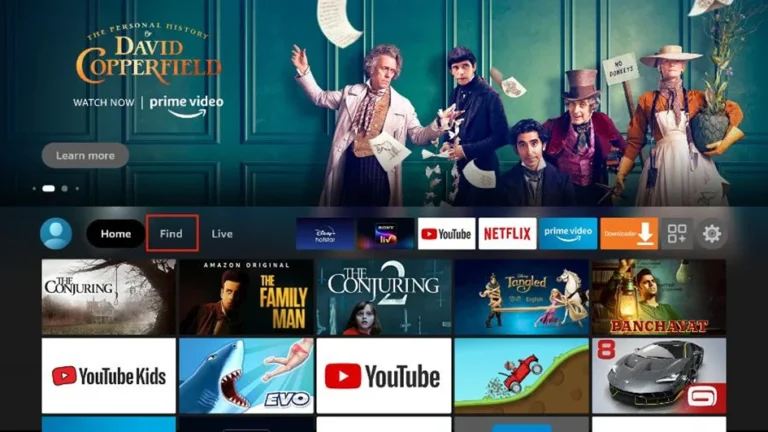
Step 2: Install the Downloader App
From the home screen, search for “Downloader” and click Install (free app by AFTVnews).
Step 3: Enter the Download Code
Open Downloader, enter the shortcode or URL provided in your Sonix IPTV activation email, and click Go.
Step 4: Install Sonix IPTV
Downloader will automatically fetch the APK file. Click Install, then click Open when finished.
Step 5: Login & Start Streaming
Open Sonix IPTV, enter your Username and Password (or M3U URL) from your activation email, and click Login to load your channels and VOD.
1. Download the Player Download our recommended IPTV player (e.g., IPTV Smarters Pro, VLC Player, or the Sonix IPTV desktop app) from our website or official store.
2. Launch the Application Open the application on your computer and select Log in with Xtream Codes API or Load Your Playlist or File/URL.
3. Enter Your Credentials Fill in the login details sent to your email after purchasing Sonix IPTV:
Any Name: Sonix IPTV
Username: Your username
Password: Your password
Server URL: The host URL provided in your activation email
4. Save & Load Content Click Add User or Login. The player will automatically load your live channels, EPG guide, movies, and TV series.
5. Start Streaming Select any live TV channel or VOD title to start watching in HD/4K resolution directly on your PC or Mac.
Tip: For the best performance on desktop, ensure hardware acceleration is enabled in your player settings and use an Ethernet cable or 5 GHz Wi-Fi connection.
1. Open the App Store From your Apple TV home screen, open the App Store.
2. Search for a Player App Click the search icon and search for an IPTV player like “IPTV Smarters Pro”, “iPlayTV”, or “GSE Smart IPTV” (or “Sonix IPTV” if using a direct custom app). Select the app from the results.
3. Install the App Click Get or Install to download the application onto your Apple TV.
4. Select Login Method Launch the app and select Log in with Xtream Codes API or Add Playlist.
5. Enter Your Credentials Fill in the login details sent to your email after subscribing to Sonix IPTV:
Playlist Name: Sonix IPTV
Username: Your username
Password: Your password
Server URL: Your portal URL
6. Sync & Start Streaming Click Add User or Save. Wait a few moments for your live TV channels, movies, and series to synchronize, then start watching.
Tip: If streams don’t load immediately, go into the app settings and change the Video Player engine to Native or switch the stream format from M3U8 to TS.
Works on Android 5.0 and newer (including Google TV, Android TV Box, Nvidia Shield, phones, and tablets).
1. Open Google Play Store On your Android device, open the Google Play Store. (For TV boxes without Play Store, use the Downloader app or Chrome browser to download the APK directly).
2. Search & Install the App Search for “Sonix IPTV” (or an IPTV player like “IPTV Smarters Pro” or “XCIPTV Player”). Click Install.
3. Launch the Application Open the app from your home screen or app drawer and select Log in with Xtream Codes API.
4. Enter Your Activation Details Fill in the login credentials sent to your email after subscribing to Sonix IPTV:
Name: Sonix IPTV
Username: Your username
Password: Your password
Server URL: The host/portal URL from your email
5. Login & Enjoy Click Add User or Login. Allow a few seconds for the live channels, VOD library, and EPG guide to sync, and start streaming.
Tip: If installing via a direct APK file on an Android Box or Smart TV, go to Settings → Security & Privacy and enable “Install Unknown Apps” for your file manager or browser.
1. Open Google Play Store From your Android TV home screen, navigate to Apps or open the Google Play Store.
2. Search & Install the App Click the search icon and type “Sonix IPTV” (or an IPTV player like “IPTV Smarters Pro” or “XCIPTV”). Select the app and click Install.
(Alternative Method): If installing via APK code, install the Downloader app from the Play Store, type the code provided in your activation email, and click Go.
3. Launch the Application Open the app from your TV home screen and select Log in with Xtream Codes API.
4. Enter Your Login Credentials Fill in the details sent to your email after subscribing to Sonix IPTV:
Name: Sonix IPTV
Username: Your username
Password: Your password
Server URL: The host/portal URL from your email
5. Login & Start Streaming Click Add User or Login. Wait a few seconds for your live channels, EPG guide, and VOD library to sync, then start watching.
Tip: On Android TV / Google TV devices, make sure to grant storage and network permissions to the app when prompted for optimal performance.
Sonix IPTV is the top 4K service with 28,000+ channels & 100k+ VOD. Experience buffer-free streaming on any device with Anti-Freeze™ technology.
+1 (332) 252-6038
support@sonixiptvs.tv
Copyright 2026, SONIX IPTV All Rights Reserved.,